
Conda Delete Environment: Commands, Errors and Safe Cleanup
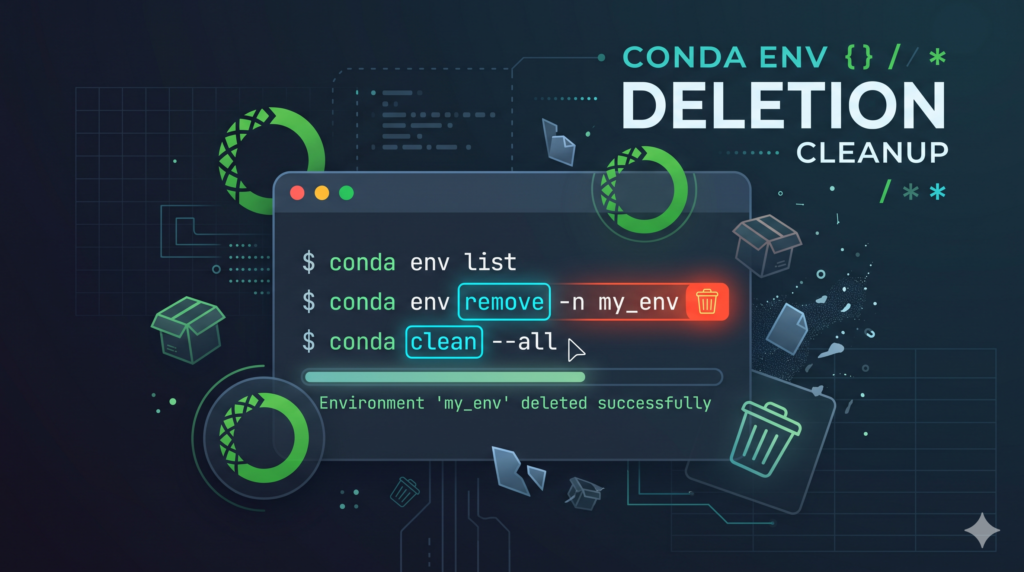
To conda delete environment, deactivate it first and then run conda env remove --name myenv. Replace myenv with the name shown by conda env list. Conda removes the environment folder and every package inside it, and the action cannot be undone.
bash
conda deactivate
conda env remove --name myenv
That is the short answer. The rest of this guide covers what the short answer leaves out: how to check and back up an environment before you delete it, how to delete by path, how to preview the deletion, what to do when conda refuses, how to get your disk space back, and what to clean up afterwards. It is written for data scientists, developers and anyone whose conda install has filled up with old project environments.
How to delete a conda environment (quick answer)
Follow these steps in a terminal (Anaconda Prompt or PowerShell on Windows, Terminal on macOS and Linux).
- List your environments and confirm the exact name:
bash
conda env list- Leave the environment if you are inside it:
bash
conda deactivate- Remove it:
bash
conda env remove --name myenv- Check that it is gone:
bash
conda env listYou can also remove an environment with conda remove --name myenv --all. Both commands delete the environment. The next sections explain the difference and when to prefer each one. Deleting is permanent, so read the checklist below before you run it on anything you might need again.
Before you delete a conda environment: check and back up
A thirty-second check prevents most regrets.
- Confirm the name. Run
conda env list. The active environment is marked with an asterisk, and each environment is shown with its path. - Note the path. Environments created in a custom location (with
--prefix) do not live in the defaultenvsfolder, and you will need the path to delete them. - Export it. If there is any chance you will need the same setup again, export it first:
bash
conda env export --name myenv > environment.ymlFor a shorter file that lists only the packages you asked for, rather than every dependency, conda also offers conda env export --name myenv --from-history. Check the output on your conda version, because the two files serve different purposes: the full export is closer to an exact rebuild, and the history-based export is more portable across operating systems.
- Deactivate. Conda will not remove the environment you are currently using.
Once an environment is deleted there is no recycle bin. The only way back is to rebuild it from an exported file:
bash
conda env create -f environment.ymlconda env remove vs conda remove –all
Conda gives you more than one way to remove an environment. The two main commands both delete the environment, and the official command reference documents both.
| Command | What it deletes | Use it when |
|---|---|---|
conda env remove -n myenv | The named environment | You know the name and want the standard approach |
conda env remove -p /path/to/env | The environment at that path | The environment was created with a prefix |
conda remove -n myenv --all | All packages, which removes the environment itself | You prefer the conda remove form, or you already use it for packages |
conda remove -n myenv --all --keep-env | All packages but keeps the empty environment | You want to reset an environment without recreating it |
Three flags are worth knowing:
--dry-run(short form-d) shows what would be removed without deleting anything.--yes(short form-y) skips the confirmation prompt, which is useful in scripts.--jsonprints machine-readable output for programs.
Preview before you delete:
bash
conda env remove --name myenv --dry-runFlags and defaults can change between conda releases, so when something behaves differently from this guide, run conda env remove --help and check the official command reference for your version.
Delete a conda environment by name or by path
Delete by name
This is the standard case, for environments stored in conda’s default envs directory:
bash
conda env remove --name myenvThe short form is conda env remove -n myenv.
Delete by path
If you created the environment with --prefix or -p, conda identifies it by location, not by name. Use conda env list to find the full path, then remove it with the matching flag:
bash
conda env remove --prefix /path/to/envThe short form is conda env remove -p /path/to/env. A name-based command will not find a path-based environment, which is the most common reason for an “environment location not found” error.
Delete a conda environment on Windows, macOS and Linux
The commands are identical on every operating system. Only the place you type them changes.
| System | Where to run the commands | Notes |
|---|---|---|
| Windows | Anaconda Prompt or Anaconda PowerShell Prompt | If you get a permissions error, run the prompt as administrator |
| macOS | Terminal | No special steps in the usual case |
| Linux | Terminal | Make sure conda is initialized in your shell |
Remove an environment in Anaconda Navigator
If you prefer a graphical interface, Anaconda Navigator can remove environments too. Open the Environments tab, select the environment you want to delete, and use the remove option for that environment, then confirm. The exact wording and layout can differ between Navigator versions, so follow the labels you see in your copy. If Navigator reports errors, the command line is the more reliable route.
On Windows, a permission error usually means something still has files open. Close other terminals, notebooks and editors that were using the environment, then try again.
Fix common errors when you delete a conda environment
Most removal failures come from a short list of causes.
| Message or symptom | Cause | Fix |
|---|---|---|
CondaEnvironmentError: cannot remove current environment | The environment is active | Run conda deactivate, then remove it again |
EnvironmentLocationNotFound | Wrong name, or a path-based environment removed with -n | Copy the name or path from conda env list and use -n or -p correctly |
| Permission denied on Windows | Files are in use, or the prompt lacks rights | Close apps using the environment, or use an administrator prompt |
| Removal fails on a damaged environment | Corrupted or half-installed environment | See the corrupted environment section below |
| Environment refuses to be removed | The environment is frozen (protected) | See the frozen environment section below |
Cannot delete base | The base environment is not removable this way | See the base environment section below |
Cannot remove current environment
Conda prints a message telling you to deactivate and run the removal again. That is exactly the fix:
bash
conda deactivate
conda env remove --name myenv
Environment not found
Conda looks for named environments in its configured environment directories. If you created the environment somewhere else, a name will not find it. Run conda env list, copy the path, and use:
bash
conda env remove --prefix /path/to/envCorrupted or half-installed environment
If a previous install was interrupted, conda env remove can fail. Use this order of attempts:
- Run
conda env removewith the name. - Try again with the full path using
-p. - Only if conda still fails, delete the environment folder yourself.
The reason for this order is that conda’s own commands also update its records, while a manual delete does not. Some guides advise against manual deletion for that reason. Others show it as the fallback for a broken environment. Both are right in their own situation: manual deletion is a last resort, not a first step.
If you do delete the folder by hand, copy the exact path from conda env list first, because the commands below cannot be undone.
bash
# macOS and Linux
rm -rf /path/to/anaconda3/envs/myenv

# Windows PowerShell
Remove-Item -Recurse -Force C:\Users\you\anaconda3\envs\myenv
Afterwards, clean conda’s cache so the environment no longer appears in listings:
bash
conda clean --allA damaged package in the cache can also surface later as a download or integrity problem. If you want to understand that category of failure, our guide to checksum errors explains what a checksum mismatch means and why it appears.
Frozen environment
Recent conda releases can protect some environments from changes. The current command reference lists an --override-frozen flag and labels it dangerous. Before you use it, find out why the environment was frozen, because it may be shared or managed by someone else. Do not override the protection just to make an error go away.
The base environment
You cannot delete base with the removal commands, because conda itself lives there. If your goal is to clean it up, you can restore it to its initial state with a revision reset, which uninstalls packages you added:
bash
conda install --name base --revision 0Use this only if you really want to wipe the additions. Removing the base environment entirely means uninstalling the conda distribution.
If you are troubleshooting other developer environments at the same time, this walkthrough of a Docker daemon connection error covers a similar “something is still running or misconfigured” pattern.
Reclaim disk space after you delete a conda environment
Deleting an environment does not always return as much disk space as you expect. Conda stores downloaded packages in a shared cache and links them into environments, so files can stay in the cache after an environment is gone. The cleanup command is:
bash
conda clean --allIt removes unused packages, downloaded package archives and index caches. Preview it first:
bash
conda clean --all --dry-runTo see the effect, compare the size of your conda directory before and after. Keep in mind that other environments may still depend on cached packages, so conda only removes what nothing is using.
Clean up what the deleted environment leaves behind
Conda removes the environment, not everything that pointed at it. Check these places:
- Jupyter kernels. A kernel registered for the environment can remain in your kernel list. List them and remove the stale one:
bash
jupyter kernelspec list
jupyter kernelspec uninstall myenv- Editor and IDE settings. VS Code, PyCharm and similar tools may still reference the removed interpreter. Select a new interpreter for each project that used it.
- Scripts and shell profiles. Search for
conda activate myenvin startup files, project scripts and README instructions, and update them. - Automation and CI jobs. Any job that activates the old name will fail. In throwaway test setups, you can create and clean up in the same job:
bash
conda env remove -n test-env -yRename or rebuild instead of deleting
Conda has no direct rename command. To change an environment’s name, clone it and remove the original:
bash
conda create --name newenv --clone oldenv
conda env remove --name oldenv
To rebuild from a saved file, use conda env create -f environment.yml. If the real problem is one bad package, you do not need to delete anything. Remove just that package:
bash
conda remove --name myenv package_nameconda, mamba and micromamba equivalents
If you use the faster drop-in tools, the removal commands follow the same pattern. Check the syntax on your installed version before relying on it.
| Tool | Remove an environment by name |
|---|---|
| conda | conda env remove -n myenv |
| mamba | mamba env remove -n myenv |
| micromamba | micromamba env remove -n myenv |
Best practices for managing conda environments
- Create one environment per project and give it a descriptive name.
- Export an
environment.ymland keep it in version control, so any environment can be rebuilt. - Review
conda env listevery few months and remove environments you no longer use. - Share the environment file with teammates so everyone works from the same setup, a habit that fits any collaborative development workflow.
- Prefer conda’s own removal commands over deleting folders by hand.
FAQ about deleting a conda environment
How do I delete a conda environment?
Deactivate it with conda deactivate, then run conda env remove --name myenv. The equivalent form is conda remove --name myenv --all.
Can I delete a conda environment while it is active?
No. Conda refuses to remove the environment you are using. Run conda deactivate first, then remove it.
Can I recover a deleted conda environment?
Not directly. Deletion is permanent. If you exported the environment with conda env export > environment.yml beforehand, you can rebuild it with conda env create -f environment.yml.
How do I delete a conda environment by path?
Use conda env remove --prefix /path/to/env, or the short form -p. Find the path with conda env list.
Can I delete the base environment?
Not with the normal removal commands. You can reset it to its initial state with a revision reset, or uninstall the whole conda distribution.
How do I delete multiple conda environments?
Remove them one at a time with the commands above. If you script it, exclude base and run a dry run first, because a loop that removes everything cannot be undone.
Does deleting an environment free disk space?
It frees the environment folder, but cached packages may remain until you run conda clean --all.
Conclusion
The safe sequence is simple: check the name, export the environment, preview with a dry run, deactivate, remove, verify, then clean the cache and update anything that still points at the old environment. Use conda env remove as your default, use a path when the environment was created with a prefix, and treat manual folder deletion as a last resort.
If you want help setting up reliable, reproducible development and automation workflows for your team, book a technical consultation with The Cloud Republic.