
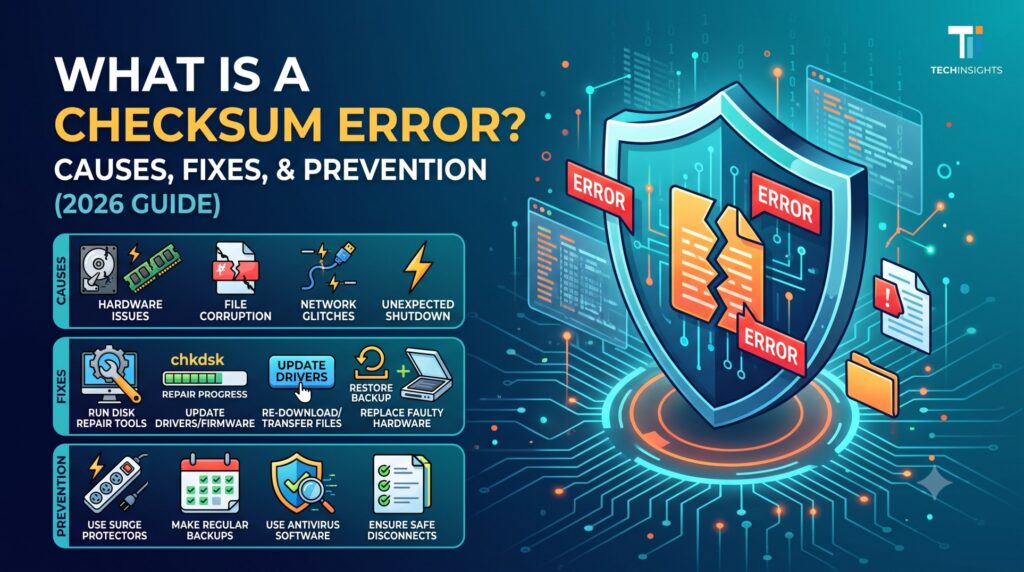
What Is a Checksum Error? Causes, Fixes, and Prevention
If you have ever tried to install a program, extract a ZIP file, restore a backup, or pull a Docker image and been stopped cold by a message that says something like “checksum mismatch” or “checksum verification failed,” you already know the feeling. The download looked fine. The progress bar hit 100 percent. And then, right at the last step, the system refused to trust the file.
That refusal has a name: a checksum error. It is one of the most common, and most misunderstood, messages in computing. Most people who see it assume something is broken on their machine. In reality, a checksum error is not a malfunction at all. It is a safety mechanism doing exactly what it was built to do: telling you that the data you received does not match the data that was supposed to arrive.
This guide breaks down what a checksum error actually means, why it happens, where it shows up across different systems, and how to fix and prevent it, whether you are a developer debugging a failed Docker pull, an IT admin chasing a backup job that will not complete, or someone just trying to unzip a file.
What Is a Checksum Error, in Plain Terms
A checksum error means the data you have does not match the data you are supposed to have. That is the entire message. Everything else, which tool raised it, which layer of the system it happened at, whether you should retry or investigate further, is context that you have to add yourself.
To understand why that mismatch matters, it helps to understand what a checksum actually is.
A checksum is a short value calculated from a block of data using a mathematical formula. Feed the exact same bytes into the same algorithm and you get the exact same result every time. Change a single bit anywhere in that data and the result changes completely, often in a way that looks nothing like the original value. This property is what makes checksums useful: they act as a fingerprint for a specific, exact version of a file.
Here is the basic flow:
- Before data is sent or saved, the sending system runs it through a checksum algorithm and produces a value.
- That value travels or gets stored alongside the data.
- When the data is received or read back, the receiving system runs the same algorithm on it and produces its own value.
- The two values are compared.
- If they match, the data survived the trip intact. If they do not match, a checksum error is raised.
In other words, the checksum error is the alarm going off correctly. It is telling you the data changed somewhere between point A and point B, and that whatever depends on that data should not proceed until the problem is resolved.
How Checksum Algorithms Actually Work
Different systems use different checksum algorithms depending on how much protection they need and how much computing overhead they can tolerate.
Simple Checksums
The earliest and simplest checksums add up all the values in a block of data, sometimes using one’s complement arithmetic, and store the result as a short code. On the receiving end, the same math is repeated. If the final sum does not equal the expected value, an error is flagged. This method is fast and cheap to compute, but it is also relatively easy to fool. Two different corrupted files can occasionally produce the same simple checksum by coincidence, which is why simple checksums are considered a baseline check rather than a strong guarantee.
Cyclic Redundancy Checks (CRC)
CRC is a step up in reliability from a basic checksum. It treats the data as a long binary number and divides it by a fixed polynomial value, keeping the remainder as the check value. CRC32 is extremely common in ZIP files, network protocols, and storage systems because it catches a wider range of accidental errors than a simple sum, while still being fast enough to run on nearly any hardware.
Cryptographic Hash Functions
For anything where security matters, not just accidental corruption but deliberate tampering, systems use cryptographic hash functions such as MD5, SHA-1, or SHA-256. These produce a much longer, much more unique fingerprint of the data. It is computationally impractical to alter a file and still land on the same SHA-256 hash by chance. This is why software downloads, package managers, and container registries lean on cryptographic checksums rather than simple CRC values: they need to know not just that data is intact, but that nobody swapped in a malicious file along the way.
Whichever method is used, the underlying logic is identical: compute, compare, and flag a mismatch. A checksum error simply means step four in that process failed.
Common Causes of a Checksum Error
Checksum errors rarely have a single universal cause. The reason depends heavily on where the mismatch is being reported. That said, the causes tend to cluster around a handful of recurring problems.
1. Interrupted or Incomplete Downloads
If a download is paused, the connection drops, or the transfer is cut off before the file finishes, the resulting file on disk is incomplete. Even a single missing byte at the end of a file changes the checksum entirely, so the verification step fails as soon as it runs.
2. Network Transmission Issues
Data moving across a network can be altered by packet loss, electrical interference, faulty cabling, a failing network card, or unstable Wi-Fi. Most modern protocols already do some error correction in transit, but not all of them catch every possible corruption, which is why an additional checksum check at the application layer still matters.
3. Storage Media Problems
Hard drives develop bad sectors over time. SSDs can suffer from firmware bugs or degraded NAND cells as they age. A drive that is failing, or one that lost power mid write, can silently store data incorrectly. The file looks like it is there, but reading it back produces different bytes than what was originally written, which trips the checksum the next time it is verified.
4. Software Bugs During Compression or Extraction
Archive formats like ZIP, RAR, and 7z embed a CRC value for each file inside the archive. If the compression process is interrupted, if the archive tool has a bug, or if the archive itself becomes partially corrupted while sitting on disk, extracting it will trigger a checksum error the moment the tool tries to verify the decompressed contents against the stored value.
5. Malware or Unauthorized Modification
Some checksum errors are the system doing exactly what it is supposed to do: catching an unauthorized change. If malware injects code into an executable, or if a file is tampered with in transit, the checksum will no longer match the original, published value. In these cases, the checksum error is not a nuisance, it is a warning worth taking seriously.
6. Hardware Memory Errors
RAM that is faulty, overheating, or running at unstable timings can flip bits in data as it passes through memory during processing, even if the source file and destination storage are both fine. This is a less common cause but a notoriously hard one to diagnose, because the file on disk often looks correct when inspected separately, yet fails checksum during an operation that routes it through bad memory.
7. BIOS or Firmware Checksum Failures
On the hardware side, motherboards store BIOS and CMOS settings with their own checksum, used to detect corruption of the stored configuration, often after a failed BIOS update, a dying CMOS battery, or a sudden power loss during a firmware write. A BIOS checksum error typically forces the system to reset settings to factory defaults on the next boot.
Where Checksum Errors Commonly Show Up
Because checksums are used almost everywhere data moves or is stored, the error itself shows up in a wide range of contexts. Recognizing the context is the fastest way to know which fix actually applies.
File Downloads and Software Installers
Publishers of software often list an official checksum (commonly SHA-256) next to a download link specifically so users can verify their copy matches the original before installing it. A mismatch here usually points to a corrupted or incomplete download, though in rare cases it can indicate the file was altered somewhere along its distribution path.
Backup and Archive Software
Backup tools that write to tape, external drives, or cloud storage often run a checksum comparison after the write completes, reading the data back and confirming it matches what was sent. If the destination storage runs out of free space mid job, or if a specific file could not be written in full, the checksum step for that job or file will fail, and most backup tools will flag it clearly rather than silently completing a broken backup.
Compressed Archives (ZIP, RAR, 7z)
Each file stored inside a compressed archive typically carries its own CRC value. Extraction tools calculate the checksum of the decompressed output and compare it against that stored value. A failure here almost always points to a corrupted archive file rather than a problem with your system.
Disk Images and ISO Files
Operating system installers and disk images are frequently distributed with a published checksum. Verifying an ISO before burning it to a USB drive or DVD is a standard step, since a corrupted ISO can produce a system that fails to boot or install correctly, sometimes without an obvious error message until much later in the process.
Docker and Container Images
Container registries store image layers with content-addressable hashes. When you run a pull and see a checksum or digest mismatch, it usually means the layer download was interrupted, the local Docker cache has a stale or corrupted layer, or there is a mismatch between the registry manifest and what was actually retrieved. Developers working through container tooling issues like this often run into related infrastructure snags too. If you have hit a checksum failure while working with containers, it is worth also checking whether your Docker daemon connection itself is healthy, since a related and very common blocker is covered in our guide on fixing the Docker daemon connection error.
Version Control and Package Managers
Git uses SHA-1 hashes internally to identify every object in a repository. A checksum mismatch during a clone, fetch, or fsck operation is a strong signal of repository corruption, often from an interrupted transfer or a disk problem on the machine hosting the repository. Package managers for languages and frameworks behave similarly, verifying downloaded packages against published hashes before installing them.
BIOS, CMOS, and Firmware
As mentioned above, a “CMOS checksum error” or “BIOS checksum error” on boot usually points to a depleted CMOS battery, a failed firmware flash, or a sudden power interruption during a settings save. It is a hardware-adjacent checksum error rather than a file-based one, and the fix path is different from the software cases above.
How to Fix a Checksum Error
The right fix depends on where the error occurred, so this section is organized by context.
Fixing Checksum Errors on Downloaded Files
- Re-download the file completely. This resolves the overwhelming majority of download-related checksum errors, since the most common cause is simply an incomplete transfer.
- Verify against the publisher’s official checksum. Most reputable software vendors publish a SHA-256 or MD5 value next to the download link. Compare it using a checksum utility built into your operating system, or a trusted third-party tool, before trusting the file.
- Try a different network or download source. If repeated attempts keep failing, an unstable connection, an intercepting proxy, or a misconfigured firewall could be corrupting the transfer.
- Clear your browser or download manager’s cache. Occasionally a corrupted partial file gets reused instead of being replaced by a fresh download.
- Check disk health on the destination drive. If every download to a specific drive fails checksum verification, but downloads to another drive succeed, the drive itself may be failing.
Fixing Checksum Errors on Hard Drives and SSDs
- Run a disk health check. Built in tools like CHKDSK on Windows, or Disk Utility and SMART monitoring tools elsewhere, can identify bad sectors or early signs of drive failure.
- Back up data immediately if failure is suspected. A drive throwing repeated checksum errors is not a drive to trust with anything important going forward.
- Avoid write operations to a failing drive. Continuing to write data to a drive with checksum issues risks losing more data, not less.
- Replace the drive if SMART data confirms degradation. Reallocated sector counts and pending sector counts climbing over time are a reliable early warning sign worth acting on before a full failure.
Fixing Checksum Errors in Archives (ZIP, RAR, 7z)
- Re-download or re-obtain the archive from its original source. A corrupted archive almost never repairs itself, and re-extracting the same broken file will not help.
- Use the archive tool’s built in repair function, where available, such as WinRAR’s “Repair Archive” option, which can sometimes recover a partially corrupted file.
- Try an alternate extraction tool. Occasionally one tool is stricter about checksum enforcement than another, and a second tool can extract usable content even when the first refuses.
- Confirm the archive was not split across multiple parts with one part missing, since multi part archives will fail checksum verification if even one segment did not transfer.
Fixing Checksum Errors in Backup Jobs
- Confirm the destination has enough free space, since backup software generally needs room to write the data back for comparison during the checksum step. A shortage here is one of the single most common causes of backup checksum failures.
- Re-run the job for the specific files that failed, rather than the entire backup set, to isolate whether the problem is with specific data or the process as a whole.
- Check the source data for corruption independently of the backup software, since a file that is already corrupted at the source will never pass a checksum comparison no matter how many times the backup runs.
- Review backup logs for the exact files or segments that failed, since backup checksum errors are almost always reported with enough detail to narrow down the cause quickly.
Fixing Checksum Errors in Docker and Containers
- Clear the local image cache and re-pull. A corrupted local layer is a frequent cause, and Docker’s own cache invalidation does not always catch it automatically.
- Confirm the registry itself is healthy, particularly if you are pulling from a private or self hosted registry, since a partial upload on the registry side can produce a manifest that does not match its layers.
- Check your network stability during the pull, especially for large multi gigabyte images, since a dropped connection partway through a layer download is a common trigger.
- Rebuild the image locally if the mismatch persists, particularly for custom images, to rule out a broken build cache.
Fixing BIOS or CMOS Checksum Errors
- Replace the CMOS battery, since a depleted battery is the single most common cause of a system losing its stored BIOS settings and throwing a checksum error on boot.
- Reset BIOS settings to defaults through the setup menu, then reconfigure any custom settings that matter, such as boot order.
- Avoid interrupting a BIOS update, since a failed or interrupted firmware flash is a more serious version of this problem and can sometimes require a recovery flash procedure specific to the motherboard manufacturer.
- Ensure a stable power source during any firmware related task, since sudden power loss mid write is the leading cause of firmware level checksum corruption.
How to Verify a Checksum Yourself
Verifying a checksum manually is straightforward once you know which command your operating system uses.
On Windows, the built in CertUtil command can generate a hash for comparison:
certutil -hashfile filename.zip SHA256On macOS and Linux, the shasum or sha256sum commands do the same job:
shasum -a 256 filename.zipor
sha256sum filename.zipOnce you have the calculated value, compare it character by character against the checksum published by the file’s source. Even a single differing character means the file does not match and should not be trusted.
How to Prevent Checksum Errors
Fixing a checksum error after the fact matters less than reducing how often you run into one in the first place. A few habits go a long way.
- Use reliable storage. Solid state drives and enterprise grade hard drives generally offer better data reliability than older or heavily used consumer drives, reducing the odds of silent corruption during writes.
- Maintain a stable network connection for large downloads and transfers, particularly for installers, disk images, and container pulls where a single dropped packet at the wrong moment can force a restart from scratch.
- Keep software and firmware updated, since many checksum related bugs in compression tools, backup software, and container runtimes get patched over time as vendors identify edge cases.
- Monitor drive health proactively using SMART data rather than waiting for a checksum error to be the first sign of trouble.
- Verify checksums on anything security sensitive before running it, particularly installers and disk images obtained from third party mirrors rather than an official source.
- Keep a UPS or stable power supply for systems doing critical writes, backups, or firmware updates, since sudden power loss is behind a disproportionate share of checksum related corruption.
Checksum Error vs. Related Error Messages
It helps to distinguish a checksum error from a few messages people often confuse it with.
- A checksum error means the calculated value from the data you have does not match the expected value. The data itself is what is in question.
- A hash mismatch is essentially the same concept using cryptographic hash terminology instead of the older “checksum” term, most common in software distribution and version control contexts.
- A CRC error, often seen during file copies on Windows, is a specific type of checksum error using the CRC algorithm, most commonly surfaced during disk reads.
- A syntax or formatting error is a different category entirely. If you have run into a data structure issue rather than a data integrity one, such as malformed brackets in a configuration or data file, that is a parsing problem rather than a checksum problem. Our breakdown of JSON syntax and square bracket errors covers that separate but commonly confused category.
Frequently Asked Questions
Is a checksum error dangerous? Not inherently. It is a detection mechanism, not damage in itself. The underlying cause, an interrupted transfer, a failing drive, or in rarer cases tampering, is what matters. Treat the error as a prompt to investigate rather than something to ignore or bypass.
Can I just ignore a checksum error and use the file anyway? It is not recommended, especially for executables, installers, or anything that will be run as code. A file that fails checksum verification may be incomplete or corrupted in a way that causes unpredictable behavior, and in rare cases it may indicate the file was tampered with.
Why does the same download keep failing checksum verification every time? This pattern usually points to something consistent in the path, such as a specific network hop that is corrupting data, a proxy or security tool interfering with the transfer, or a failing destination drive, rather than random bad luck on each attempt.
Does a checksum error mean my computer has a virus? Not necessarily, and in most everyday cases it does not. Interrupted downloads and storage issues account for the large majority of checksum errors. That said, if a checksum fails on a file from a source you trust and the official checksum was published separately, it is worth treating with more caution and scanning the file before running it.
What is the difference between checksum and CRC? CRC is a specific, more robust type of checksum algorithm. All CRC values are a form of checksum, but not all checksums use the CRC method. Simple additive checksums are weaker and catch fewer types of corruption than CRC or cryptographic hashes.
How do I fix a checksum error when installing WordPress plugins or themes? This typically traces back to an incomplete download of the plugin or theme package, or a corrupted transfer during upload to your server. Re downloading the package from the original source and re uploading it usually resolves it. If it happens consistently across multiple plugins on the same site, it is worth having the server environment checked, since our team handles exactly this kind of WordPress bug fixing and troubleshooting work regularly.
Can a slow or unstable website itself contribute to checksum errors during file uploads? Yes, indirectly. A server under heavy load or with poor connectivity can interrupt file transfers mid upload, which produces the same kind of incomplete data that triggers a checksum mismatch on the receiving end. If your site struggles under load generally, that is worth addressing on its own, and it overlaps with broader concerns covered in our piece on why website speed is costing you clients.
The Bottom Line
A checksum error is not a mysterious malfunction. It is a straightforward, deliberately designed safety check reporting that the data in front of you does not match the data that was supposed to be there. The specific cause changes depending on context, an interrupted download, a failing drive, a backup job that ran out of space, a corrupted container layer, or a depleted CMOS battery, but the underlying logic is always the same: compute, compare, and flag any mismatch before it causes a bigger problem down the line.
Treat a checksum error as useful information rather than an obstacle. In almost every case, the fix is straightforward once you know where the mismatch occurred: re-download, re-verify, check the hardware, or check the process that wrote the data in the first place. And if checksum failures keep surfacing across your systems, whether during backups, deployments, or routine file transfers, that pattern is usually worth a proper technical review rather than repeated one-off fixes. If that is where you are, our technical consultation service is built for exactly that kind of diagnostic work.