
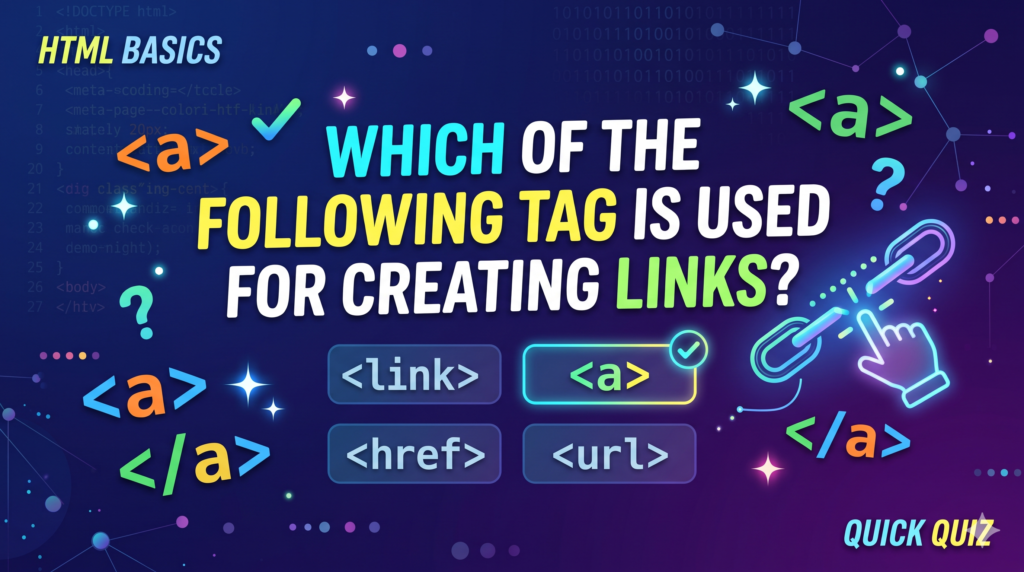
The tag used for creating links in HTML is the anchor tag, written <a>. You place the destination address in its href attribute and put the clickable text between the opening and closing tags. If you are answering a quiz, pick <a>. If you are building a website, the same tag also decides whether search engines can follow your links, so it is worth understanding properly.
This guide is for students facing an HTML multiple choice question, beginners building a first page, and site owners who want links that both visitors and search engines can use. It explains the answer, why the other options are wrong, how to write a link step by step, which attributes matter, and what to avoid.
The Short Answer: The <a> (Anchor) Tag
The <a> element, known as the anchor element, creates a hyperlink from one place (the source) to another (the destination). The destination can be another page, a file, an email address or a spot lower on the same page. Both the opening and closing tags are required, and everything between them becomes the clickable part.
html
<a href="https://example.com/">Visit the example site</a>Three things to notice in that line:
- The
hrefattribute holds the destination address. - The text between the tags is the link text, also called anchor text.
- The closing
</a>ends the clickable area.
A link does not have to be text. You can wrap an image or another element inside the tag and the whole thing becomes clickable. The <a> tag is an inline element, so it sits inside a line of text instead of starting a new block.
By default, browsers show an unvisited link as blue and underlined, a visited link as purple and underlined, and an active link as red and underlined. You can change all of that with CSS, but the underlying tag stays the same.
Solving the Multiple Choice Question: Which Tag Creates Links?
Exam banks phrase this question in several ways, such as “HTML links are defined with the ______ tag” or “Which HTML tag is used to create a hyperlink to another web page?” The options usually come from the same small pool, so it helps to know why each wrong answer is wrong.
| Option | Verdict | Reason |
|---|---|---|
<a> | Correct | The anchor element is the standard tag that defines a hyperlink. |
<link> | Wrong | It lives in the head of a page and describes a relationship to an external resource, most often a stylesheet. It does not create clickable text. |
<href> | Wrong | href is an attribute that sits inside the <a> tag. It is not a tag by itself. |
<url> | Wrong | There is no HTML element with this name for making links. |
<p> | Wrong | This defines a paragraph of text. |
<hl> | Wrong | This is not a recognised HTML element, and it is often a typo-style distractor for the heading tag. |
A simple exam tip: look for the element that wraps the clickable text and takes a destination. That is the anchor tag. If an option is spelled like an attribute, such as href or target, it cannot be the answer to a question that asks for a tag.
How to Create a Link in HTML Step by Step
Writing a hyperlink in HTML takes five short steps.
- Type the opening tag with the
hrefattribute:<a href=". - Add the destination address and close the quote. Use a full address such as
https://example.com/page/for another site, or a path such as/about/for a page on your own site. - Close the opening tag with a greater-than sign, then type the link text. Make the text describe the destination.
- Add the closing
</a>tag. - Open the page in a browser and click the link to confirm it goes where you expect.
Here is a small page that uses an absolute link and a relative link together:
html
<!DOCTYPE html>
<html>
  <head>
    <title>My first links</title>
  </head>
  <body>
    <p>Read the <a href="https://developer.mozilla.org/">MDN web docs</a> to learn more.</p>
    <p>Go to our <a href="/contact/">contact page</a> to get in touch.</p>
  </body>
</html>
If you want the destination to open in a new browser tab, add target="_blank" to the opening tag. That attribute is covered in the next section.
HTML Link Attributes Every Beginner Should Know
The anchor tag becomes far more useful once you know its attributes. These are the ones you will use most often.
| Attribute | What it does | Common values |
|---|---|---|
href | Sets the destination of the link. Without it the element is not a working hyperlink. | A full URL, a path, mailto:, tel:, or #id |
target | Sets where the destination opens. | _self (default, same tab), _blank (new tab or window), _parent, _top |
rel | Describes the relationship to the destination. | nofollow, sponsored, ugc |
download | Tells the browser to download the file instead of opening it. | Present or given a file name |
title | Adds tooltip text, and Google may use it as fallback anchor text if the link text is empty. | Short descriptive text |
hreflang | States the language of the linked page. | A language code such as en |
The rel attribute is the one with real search consequences. Google asks site owners to mark links that were paid for with sponsored or nofollow, and links in user-generated areas such as forums or comments with ugc or nofollow. It also describes nofollow as the right choice when you do not want to pass your site’s reputation to a source you do not trust. If you want a deeper look at how that works in practice, read this explanation of whether nofollow links help SEO.
One more point worth remembering: the href attribute stands for hypertext reference. A link with no href is only a placeholder. Browsers will not treat it as a working hyperlink, and search engines cannot follow it.
Types of HTML Links With Examples
Once you know the tag and the attributes, the type of link you create depends only on what you put in href. Here is a quick reference.
| Type | Example | When to use it |
|---|---|---|
| Absolute link | <a href="https://example.com/page/">Page</a> | Linking to another website, or to your own site with the full address |
| Relative link | <a href="/services/">Services</a> | Linking to another page on the same site |
| Fragment link | <a href="#faq">Jump to the FAQ</a> | Jumping to an element with a matching id on the same page |
| Email link | <a href="mailto:[email protected]">Email us</a> | Opening the visitor’s email program with a new message |
| Phone link | <a href="tel:+11234567890">Call us</a> | Starting a call on a phone |
| Download link | <a href="guide.pdf" download>Download the guide</a> | Saving a file to the visitor’s device |
| Image link | <a href="/shop/"><img src="shop.jpg" alt="Browse the shop"></a> | Making a picture clickable |
Two ideas are worth separating. An internal link points to another page on your own site, and an external link points to a different site. Internal links help visitors move around and help search engines discover your pages. External links let you cite sources and add credibility. For the search side of this topic, including how links pass value between pages, see this guide to hyperlinks in SEO.
For image links, the alt text of the image works as the anchor text. Write it the way you would write link text, describing where the click leads.
Tags Often Confused With the Anchor Tag
Several other elements deal with links or navigation, which is why they appear as wrong answers in quizzes. Here is how each one differs from <a>.
<link>: Placed in the head of a page to connect it to resources such as a stylesheet. It produces nothing the visitor can click.<area>: Used inside an image map to define clickable regions of an image. It can carry anhref, but it is a specialised tool, not the general way to make links.<button>: Triggers an action. On its own it does not move a visitor to another page. Developers sometimes add JavaScript so a button navigates, but a real<a href>is the better choice whenever the destination should be reachable and discoverable.<nav>: A container that groups a set of navigation links. The links inside it are still made with<a>.<a>withouthref: A placeholder. It does not behave as a hyperlink.
If you remember only one rule, make it this: the tag that creates the link is <a>, and the attribute that gives it a destination is href.
Why the Anchor Tag Matters for SEO and Crawling
Choosing the right tag is not only an exam question. Google uses links to find new pages to crawl and as a signal when judging how relevant a page is. According to Google’s own link guidance, it can generally only crawl a link that is an <a> element with an href attribute. Most other formats will not be parsed and extracted by its crawlers.
Google lists examples that work and examples it does not recommend:
- A normal
<a href="/products/">link, with or without extra attributes such as a class, is fine. - A link inserted into the page by JavaScript is also fine, as long as the final markup is a proper
<a href>. - A
spanwith anhref, an<a>that relies only on anonclickhandler, or anhrefthat starts withjavascript:are not recommended, because Google may fail to extract the address.
The practical lesson is simple. If you want a page to be found, give it a real anchor link from at least one other page on your site. If you use JavaScript to build your links, check the rendered result with the URL Inspection Tool in Google Search Console.
Write anchor text that helps people and search engines
Google describes good anchor text as descriptive, reasonably concise and relevant to both the page it sits on and the page it points to. Compare these examples:
| Weak anchor text | Better anchor text |
|---|---|
| Click here to learn more | See our guide to writing descriptive link text |
| Read more | Read the full checklist for website redesigns |
| Visit our website | Explore our custom website design process |
A useful test is to read only the anchor text with the surrounding sentence hidden. If you cannot tell what the destination is about, rewrite it. Avoid the opposite mistake too: stuffing every related keyword into the anchor reads badly and runs against Google’s spam guidance. Also avoid placing several links directly next to each other, because readers lose the context around each one.
Strong internal linking is part of a wider plan for your content, and it works best when every important page is reachable through natural, descriptive links. If you are building that plan, this overview of internal linking strategy for SEO content is a good next read.
Common Mistakes When Creating Links
Most broken or ineffective links come from a short list of errors.
- Leaving out the
href. The element then has no destination and no working link. - Relying only on
onclick. A script-driven click may work for visitors but is not a link search engines can follow. - Using generic link text. Phrases such as “click here” tell neither people nor search engines anything useful.
- Leaving the anchor empty. An empty anchor has no clickable text. Google may fall back to the
titleattribute, but you should not rely on that. - Mistyping or mis-quoting the URL. A missing quote or an extra character sends visitors to the wrong place or nowhere.
- Using
<link>instead of<a>. Thelinkelement is for resources in the head, not for clickable text. - Letting links break over time. Pages move, get deleted or change address, and links that once worked start to fail.
- Stacking links together. Several links with no words between them are hard to tell apart.
Broken links in particular tend to pile up quietly as a site grows. Regular checks and fixes are part of ongoing website maintenance and support, and they protect both the visitor experience and your search visibility.
How to Add Links in WordPress Without Code
You do not need to type HTML by hand to create links in WordPress. The editor has an insert link control: you select the text, choose the link option, and paste or search for the destination. Behind the scenes the editor writes the same <a href> markup described in this guide.
If you ever want to confirm what was produced, switch to the code or HTML view of the post and look for the <a> tag around your text. That is also the quickest way to check that the href holds the right address and that any new-tab or rel setting you chose was applied.
The same rules apply here as anywhere else: choose descriptive link text, link to genuinely relevant pages and keep the destination current. For sites that want to go further than good habits, professional WordPress SEO optimization can review how links, structure and performance work together.
Practice Questions on HTML Links
Test yourself with these five questions. The answers follow the list.
- Which tag creates a hyperlink?
- Which attribute holds the destination URL of a link?
- Which
targetvalue opens a link in a new tab? - Which URL scheme inside
hrefopens the visitor’s email program? - Which tag in the head connects a stylesheet but creates no clickable link?
Answers:
- The anchor tag,
<a>. - The
hrefattribute. _blank.mailto:.- The
<link>tag.
Frequently Asked Questions
Which tag is used for creating links in HTML?
The anchor tag, <a>, is used for creating links in HTML. You give it a destination with the href attribute and place the clickable text between the opening and closing tags.
Is the anchor tag a block or inline element?
The anchor tag is an inline element. It sits within a line of text and only takes the space its content needs, although you can change that with CSS.
What does href stand for?
The href attribute stands for hypertext reference. It holds the address of the page, file or location the link points to.
Can the link tag be used to make clickable text?
No. The <link> tag belongs in the head of a page and describes a relationship to an external resource, such as a stylesheet. Clickable text needs the <a> tag.
How do I open a link in a new tab?
Add target="_blank" to the anchor tag. For example: <a href="https://example.com/" target="_blank">Example</a>. Leave the attribute out and the link opens in the same tab by default.
Does Google follow links that are not anchor tags?
Generally no. Google says it can usually only crawl links that are <a> elements with an href attribute. Other formats, such as script-only click handlers, may not be parsed, so use real anchor links for anything you want found.
Conclusion
The tag used for creating links is the anchor tag, <a>, and the href attribute gives it a destination. Everything else in the options list is either an attribute, a tag with a different job or not a real link tag at all. In practice, two habits matter most: always build navigation with a real <a href>, and write anchor text that tells readers where the click leads.
If you are planning a new site or a rebuild and want links, structure and content handled properly from the start, explore our web design and development work. And if you want help making sure search engines can find and understand every page, our SEO services cover exactly that.