
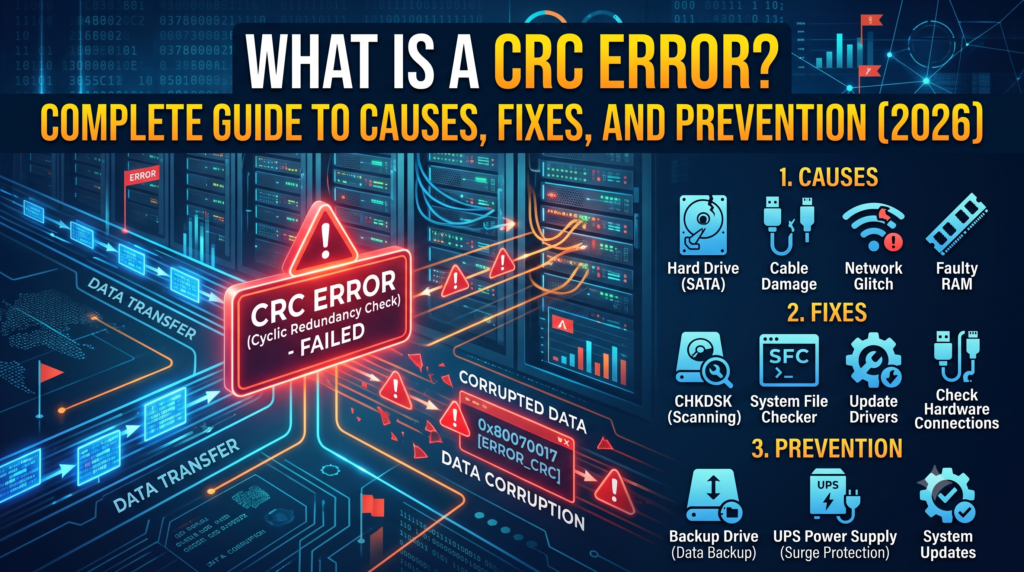
What Is a CRC Error? Causes, Fixes, and Prevention Explained
If you have ever tried to copy a file, extract a compressed archive, or read a hard drive and been stopped by a message that says “Data error (cyclic redundancy check),” you already know how disruptive a CRC error can be. One moment your files are sitting there normally, and the next moment Windows, macOS, or a network device is telling you that something cannot be verified, copied, or opened.
This guide breaks down exactly what a CRC error is, why it happens, how to fix it on different types of storage and connections, and what you can do going forward to avoid running into it again. Whether you are a home user staring at a stuck file transfer or an IT professional troubleshooting a flaky network link, the underlying concept is the same, and so is the general approach to fixing it.
What Is a CRC Error?
A CRC error, short for a Cyclic Redundancy Check error, occurs when a device detects that a block of data does not match the checksum value that was originally attached to it. In plain terms, the computer, drive, or network device expected the data to look one way based on a mathematical check, and what it actually received or read looked different. Since the two values do not agree, the system cannot confirm the data is intact, so it stops the operation and reports an error rather than risk handing you corrupted information.
You will typically see this show up as a blunt system message such as:
- Data error (cyclic redundancy check)
- X:\ is not accessible. Data error (cyclic redundancy check)
- An error occurred while extracting files: CRC failed
The wording varies slightly depending on the operating system, archiving tool, or network hardware involved, but the underlying meaning is consistent: a data integrity check has failed.
How Cyclic Redundancy Check Actually Works
To understand why CRC errors happen, it helps to understand what the check is doing in the background. Cyclic redundancy checking was developed by mathematician W. Wesley Peterson in 1961 as a way to catch accidental changes to raw data during storage and transmission. It is not encryption and it is not meant to protect data from tampering. It exists purely to detect unintentional corruption.
Here is the general process:
- Before data is written to a disk or sent across a network, the sending device runs it through a mathematical formula based on polynomial division.
- This calculation produces a short, fixed-length value called the CRC value or checksum.
- That checksum is attached to the original data block.
- When the data is later read from the disk or received at its destination, the same calculation is performed again on the data that actually arrived.
- If the newly calculated checksum matches the one that was attached earlier, the data is treated as intact. If it does not match, a CRC error is raised and the data is normally rejected or flagged.
This method is efficient because it does not require comparing the entire original file byte by byte. A short checksum is enough to catch the overwhelming majority of accidental changes, which is why CRC has remained the standard error-detection method in hard drives, optical discs, USB devices, compressed archive formats, and network protocols for well over sixty years.
Studies on real-world file transfers back up why this check still matters. Long-running research on large-scale network transfers has found that roughly 1 in every 121 transfers delivered a file whose checksum did not match the original, meaning the data was silently corrupted without the transfer itself failing outright. Without a check like CRC in place, that kind of corruption could go completely unnoticed.
Where CRC Errors Commonly Show Up
CRC errors are not limited to one type of device or one operating system. You are most likely to encounter one in these situations:
- Extracting a ZIP, RAR, or 7z archive and having the process fail partway through
- Copying or moving files between an internal drive, external hard drive, or USB flash drive
- Reading a CD, DVD, or Blu-ray disc that has scratches or has started to degrade
- Downloading large files where the connection was unstable
- Installing software from a disc image or downloaded installer
- Networking environments, where switches and routers report CRC error counters on individual interfaces as a sign of a physical link problem
In storage contexts, a CRC error is often one of the first visible symptoms of a drive that is starting to fail. In networking contexts, a sudden spike in CRC error counts on a previously clean interface almost always points to a physical-layer issue such as a damaged cable, a bad connector, or electrical interference, rather than anything wrong with the software or the data itself.
Common Causes of a CRC Error
CRC errors rarely appear for just one reason. The list below covers the most frequent root causes across both storage devices and network connections.
1. Bad Sectors on a Hard Drive
Over time, sections of a mechanical hard drive can become physically damaged or unreadable. When the drive tries to read data stored in one of these bad sectors, the value it retrieves does not match the original checksum, triggering a CRC error. This is one of the most common causes on older or heavily used drives.
2. Physical Damage to Cables, Ports, or Connectors
A loose, damaged, or low-quality SATA cable, USB cable, or network cable can introduce noise or signal loss during data transfer. Even minor physical damage that is not obvious to the eye can be enough to corrupt data in transit, especially at higher transfer speeds.
3. Scratched or Degraded Optical Media
CDs, DVDs, and Blu-ray discs rely on a reflective surface being read accurately by a laser. Scratches, dust, fingerprints, or general disc degradation over time can cause the drive to misread data, which then fails the CRC check.
4. Abrupt Power Loss or Improper Ejection
If a device loses power, is unplugged, or is ejected while data is actively being written, the write operation can be left incomplete. The resulting file or sector may not match what the checksum expects, leading to a CRC error the next time it is accessed.
5. Malware or Virus Infections
Some malware actively corrupts or modifies files, while other infections cause instability that interrupts normal read and write operations. Either scenario can result in checksums no longer matching.
6. Outdated, Corrupted, or Conflicting Drivers
Storage controller drivers, USB drivers, or network adapter drivers that are outdated or corrupted can misread or mistransmit data even when the underlying hardware is healthy, producing CRC errors that have nothing to do with the drive or cable itself.
7. Unstable or Congested Network Connections
On the networking side, CRC errors on a switch or router interface usually point to a degraded network cable, a failing transceiver, electromagnetic interference near the cable run, a duplex mismatch between two connected devices, or a network interface card that is starting to fail. Left unaddressed, these errors force repeated retransmissions, which adds latency, reduces effective throughput, and can eventually destabilize the link under heavy load.
8. File System Corruption
Sometimes the issue is not the physical hardware at all but the file system structure itself. A file system that has become corrupted, whether through improper shutdowns, software bugs, or partition errors, can misreport data locations and trigger CRC errors even on otherwise healthy hardware.
9. Aging or Failing Drives (HDD and SSD)
Every drive has a finite lifespan. As a mechanical hard drive’s read/write heads wear down, or as an SSD’s memory cells degrade after repeated write cycles, the likelihood of read errors and CRC mismatches increases. A CRC error appearing more frequently over time is often an early warning sign that the drive is approaching failure.
How to Fix a CRC Error
The right fix depends on where the error is occurring. Below are the most effective approaches, organized from the simplest checks to the more involved recovery steps.
Step 1: Rule Out a Simple Connection Problem First
Before assuming the worst, check the basics. Reseat the USB cable or SATA cable, try a different cable if one is available, try a different USB port, and confirm the device is properly connected. A surprising number of CRC errors trace back to nothing more than a loose or faulty cable.
Step 2: Run the Built-In Disk Check Utility
On Windows, the CHKDSK utility scans a drive for file system errors and bad sectors and attempts to repair what it can.
- Open Command Prompt as an administrator.
- Type
chkdsk X: /f /rand replace X with the letter of the affected drive. - Press Enter and allow the scan to run. This can take a significant amount of time on large or heavily damaged drives.
- Restart the computer if prompted, since CHKDSK sometimes needs to run before Windows fully loads.
On macOS, Disk Utility’s First Aid feature performs a similar function and can be run from Finder or from Recovery Mode if the drive is not booting properly.
Step 3: Try a Different Extraction Tool for Archive Files
If the CRC error appears specifically while extracting a compressed file, the archive itself may be partially corrupted rather than the drive. Try re-downloading the file from its original source, or try extracting it with a different archiving tool, since some tools are more tolerant of minor corruption than others.
Step 4: Update or Reinstall Drivers
Update storage controller drivers, USB controller drivers, or network adapter drivers through Device Manager on Windows or the manufacturer’s own update tool. If a driver update does not help, uninstalling and reinstalling the driver from scratch can resolve conflicts that a simple update misses.
Step 5: Scan for Malware
Run a full system scan with a reputable antivirus or anti-malware tool. If an infection is found and removed, re-check whether the CRC error persists on previously affected files, since some corrupted files may need to be restored from backup even after the infection itself is cleared.
Step 6: Use Data Recovery Software Before Attempting a Repair
If the affected drive contains files you cannot afford to lose, prioritize recovering the data before running any repair tool. Some repair processes, including formatting or advanced CHKDSK operations, can overwrite data that might otherwise still be recoverable. Dedicated data recovery software can often pull files off a drive even while it is throwing CRC errors, as long as the drive is still mechanically functional enough to be read.
Step 7: Check SMART Status for Drive Health
Most modern drives support SMART (Self-Monitoring, Analysis, and Reporting Technology), which tracks internal health indicators such as reallocated sector counts and read error rates. A SMART status check, through built-in OS tools or third-party utilities, can confirm whether the drive itself is physically failing rather than experiencing a one-off software glitch.
Step 8: For Network CRC Errors, Isolate the Physical Layer
When CRC error counters climb on a switch or router interface, start at the physical layer rather than the software configuration. Swap the network cable for a known-good one, test a different port on the switch, check for a duplex mismatch between the two connected devices, and inspect the cable run for sources of electromagnetic interference such as running it alongside power cables. If errors persist after ruling out the cable and port, the network interface card or transceiver itself may need replacement.
Step 9: Replace the Drive If Errors Persist
If CRC errors keep recurring after cables, drivers, and file system checks have all been ruled out, and SMART data shows a declining health status, the safest path forward is usually to back up whatever data can still be accessed and replace the drive before it fails completely.
How to Prevent CRC Errors in the Future
Fixing a CRC error once it appears is only half the picture. A few consistent habits can significantly reduce how often you run into one again.
- Use quality cables and connectors. Cheap or damaged USB and SATA cables are a disproportionately common source of CRC errors relative to how little they cost to replace.
- Eject external drives properly. Always use the safe eject function rather than pulling a USB drive out while it may still be writing data.
- Keep a reliable power supply. Use a surge protector or an uninterruptible power supply for desktop systems and NAS devices to avoid abrupt power loss during read and write operations.
- Run regular disk health checks. Periodically running CHKDSK, Disk Utility, or a SMART monitoring tool can catch a failing drive before it results in an unrecoverable CRC error.
- Keep drivers and firmware current. Storage controllers, network adapters, and switch firmware all receive updates that can fix bugs contributing to data integrity issues.
- Maintain backups. No prevention method eliminates hardware failure entirely, so a consistent backup routine, whether to an external drive, NAS, or cloud storage, ensures a CRC error on one device never means permanent data loss.
- Store optical media properly. Keep discs in cases, away from direct sunlight and extreme temperatures, and handle them by the edges to avoid scratches and fingerprints.
- Monitor network interfaces. For business environments, checking switch and router interface statistics on a regular schedule makes it easier to catch a degrading cable or failing port before it becomes a bigger performance problem.
CRC Errors on Different Devices
CRC Errors on Windows
Windows most commonly surfaces CRC errors as a “Data error (cyclic redundancy check)” message during file copying, drive access, or archive extraction. CHKDSK is the first tool to reach for, followed by driver updates and SMART checks if the problem is tied to a specific drive.
CRC Errors on External and USB Drives
External hard drives and USB flash drives are especially prone to CRC errors because their cables and connectors see frequent physical handling. Reseating the connection, testing a different cable, and trying a different USB port resolves a large share of these cases before any deeper troubleshooting is needed.
CRC Errors During Downloads
A CRC-style error during a download, sometimes reported by the download manager or the archive tool used afterward, generally points to an interrupted or unstable connection during the transfer. Re-downloading the file, ideally on a more stable connection, is usually sufficient.
CRC Errors in Networking Equipment
On managed switches and routers, CRC error counters are a standard part of interface statistics that network engineers check regularly. A sudden spike on a link that was previously clean is a strong signal of a physical-layer problem such as a bad cable, connector, or duplex mismatch rather than a configuration issue.
CRC vs Other Error Detection Methods
CRC is not the only method used to catch data corruption, and understanding how it compares to the alternatives helps explain why it remains so widely used.
Parity checking is a much simpler method that adds a single bit to a block of data to indicate whether the number of set bits is even or odd. It can catch a single-bit error but misses many multi-bit errors, making it far less reliable than CRC for anything beyond very simple applications.
Checksums, in the generic sense, add up the numeric values of a data block and store the result for later comparison. Basic checksums are computationally cheap but are also easier to fool, since certain types of corruption can still produce a matching sum even when the underlying data has changed.
Hash functions, such as MD5 or SHA-256, are far more robust and are commonly used to verify large downloads or confirm that a file has not been tampered with. They are more computationally intensive than CRC, though, which is why CRC remains the preferred choice for real-time, high-volume operations like disk controllers and network hardware, where speed matters more than cryptographic-level certainty.
CRC sits in a practical middle ground: it is fast enough to run continuously in hardware, and it is mathematically strong enough to catch the overwhelming majority of accidental, real-world data corruption, which is exactly the problem it was designed to solve.
CRC Errors in Specific File Types and Formats
Certain file types are more likely to surface a CRC error simply because of how they are structured or how they get used.
Compressed archive formats such as ZIP, RAR, and 7z store a CRC value for each file inside the archive. This means an archive extraction can fail on a single corrupted file while the rest of the archive remains completely intact, which is why re-downloading the archive or extracting it with a different tool often resolves the issue without needing to touch anything else in the package.
Disc image files such as ISO files behave similarly, particularly when they were originally created from a physical disc that had scratches or read errors at the time of creation. A CRC error while mounting or burning an ISO often traces back to the source disc itself rather than anything wrong with the computer doing the mounting.
Large media files, including video and high-resolution image files, are more likely to show visible symptoms of corruption, such as frozen frames or distorted sections, alongside or instead of an explicit CRC error message, especially when the corruption happened during a long file transfer that was interrupted partway through.
Virtual machine disk files and other large single-file containers can be particularly disruptive when a CRC error occurs, since the entire virtual machine can become unusable rather than just one small file, which makes reliable storage and regular backups especially important in server and IT environments running multiple virtual machines.
When a CRC Error Signals a Bigger Problem
Most CRC errors are isolated incidents that get resolved with the steps above. However, there are a few patterns worth paying closer attention to, since they tend to indicate something more serious than a one-time hiccup.
If CRC errors are appearing across multiple, unrelated files on the same drive, that pattern points toward the drive itself rather than any individual file. A single corrupted download is normal. A dozen different files failing CRC checks on the same drive within a short period is not.
If the frequency of CRC errors is increasing over time, that trend line matters more than any single incident. Drives rarely fail instantly. They tend to degrade gradually, throwing an occasional error at first and then more frequent ones as physical wear progresses.
If CRC errors are appearing alongside other warning signs, such as unusual clicking or grinding noises from a mechanical hard drive, dramatically slower read and write speeds, or the drive intermittently disappearing from the system entirely, that combination is a strong signal that hardware failure is imminent rather than a fixable software issue.
For businesses, recurring CRC errors on production servers or backup systems carry real operational risk. Beyond the immediate inconvenience, they can indicate that backups themselves are silently failing, which is arguably worse than an obvious failure, since it can go unnoticed until a restore is actually needed and does not work.
Frequently Asked Questions About CRC Errors
Is a CRC error the same as a virus?
No. A CRC error is a symptom of data corruption or a hardware issue, not a type of malware itself. That said, malware infections can be one of several causes behind a CRC error, so running a malware scan is a reasonable step in the troubleshooting process.
Can a CRC error mean my drive is dying?
It can, especially if the error recurs across multiple files or sessions. Persistent CRC errors combined with a declining SMART status are a strong indicator that a drive is approaching failure and should be backed up as soon as possible.
Will formatting the drive fix a CRC error?
Formatting can resolve file system level causes of a CRC error, but it also erases the data on the drive. Any files you need should be recovered or backed up before formatting is attempted.
Why does a CRC error keep happening on the same file?
If one specific file consistently triggers a CRC error while others on the same drive do not, that file itself is likely corrupted, either from an incomplete download, an interrupted write, or damage during a previous transfer. Re-downloading or restoring it from a backup is usually the fastest fix.
Can a CRC error happen over Wi-Fi or only on wired connections?
CRC checks apply to both wired and wireless data transmission. Wireless connections are somewhat more prone to interference-related corruption, but the underlying CRC mechanism and troubleshooting approach are conceptually the same.
Does a CRC error mean my data is permanently lost?
Not necessarily. In many cases the underlying data can still be recovered with the right tools, especially if action is taken before further writes to the affected drive. The longer a failing drive continues to be used, the higher the risk that recovery becomes difficult or impossible.
Final Thoughts
A CRC error is ultimately a protective mechanism doing exactly what it was designed to do: refusing to hand you data that does not check out mathematically rather than silently passing along something corrupted. That said, recurring CRC errors are rarely something to ignore. Whether the root cause is a worn cable, a failing drive, a network cabling issue, or file system corruption, identifying the specific cause and addressing it early is almost always easier and cheaper than dealing with a full drive failure or permanent data loss later on.
If CRC errors keep showing up despite basic troubleshooting, or if they are affecting business-critical systems, servers, or networking infrastructure, bringing in a technical team to properly diagnose hardware health, network cabling, and system configuration is often the more reliable path forward, especially where downtime and data integrity genuinely matter